 How to Read a MyGeotab Exceptions Report
No fleet manager can watch every mile their vehicles drive. Managing by exception solves that problem: you decide which behaviors matter, and MyGeotab alerts you only when a driver or vehicle crosses the line. Those alerts are collected in the Exceptions report.
Below, we explain what the report contains, how to make sense of speeding, idling and harsh braking events, and how to use what you find to coach drivers and lower operating costs.
What Counts as an Exception?
An exception is simply a rule violation. You define the standards for your fleet in MyGeotab, the system watches for anything that breaks them, and a record is created each time that happens. Managers then step in to coach or correct, but only when a limit has been passed or a worrying trend appears.
Rules are found under Groups & Rules > Rules. They are grouped into categories including safety, productivity, fleet optimization, compliance and sustainability. Speeding and harsh braking fall under safety, while idling has its own set of rules. Every violation is stored as an event and can also fire off a notification.
Finding and Filtering the MyGeotab Exceptions Report
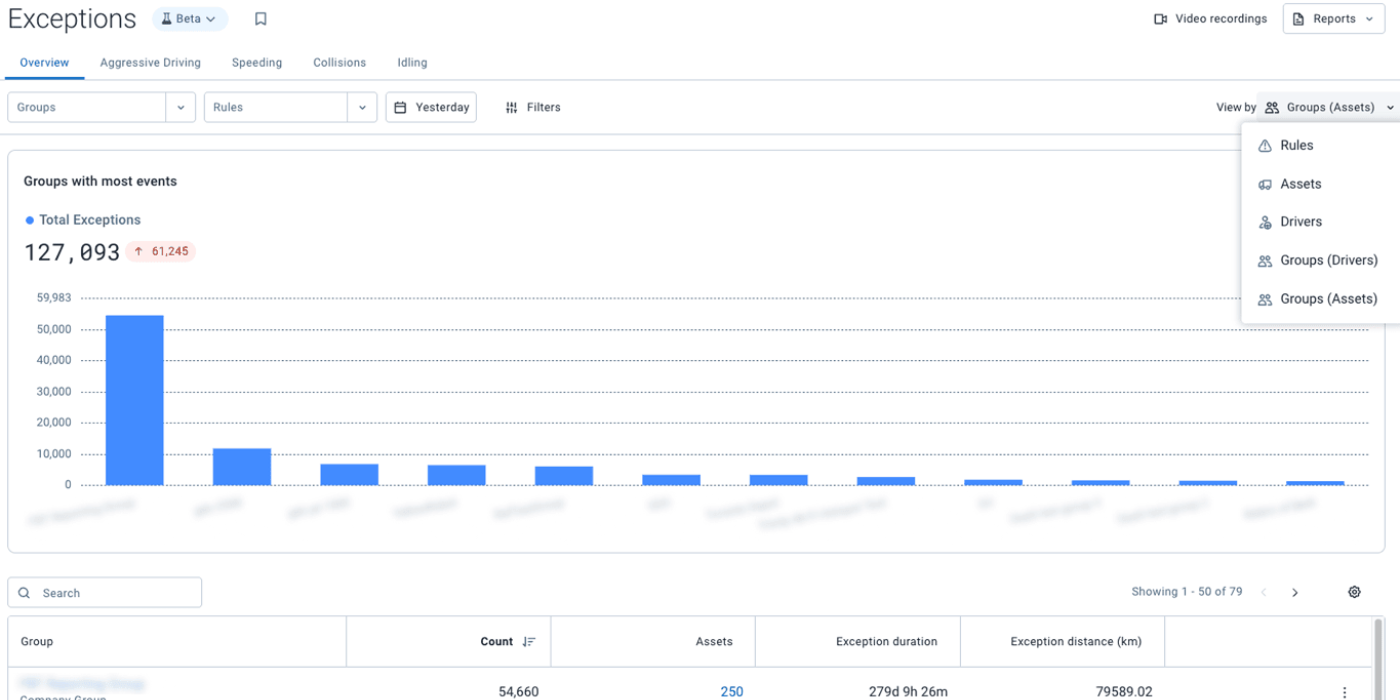
- Sign in to MyGeotab and choose Exceptions from the main menu. It is located with the Groups & Rules tools, though some guides call that section Rules & Groups depending on the software version.
- A list appears showing every event produced by your active rules.
- Narrow the list by date range, vehicle or driver, or a specific rule such as Speeding or Harsh Braking. You can also type a keyword into the search box.
- Select any entry to see who was driving, which vehicle was involved, when it happened, which rule fired, where it took place on the map, and any comments attached to it.
- Choose Export to save the results for a review meeting or a driver file.
Your user permissions determine what you can do here. Basic access lets you view exceptions, and reviewing them needs an added permission.
Good to know: The Exceptions report tells you where each violation occurred. The Risk Management report instead counts violations against the distance driven. Pair them. Ten violations over 500 miles is a much better record than ten over 50 miles, so rank your drivers by violations per 100 miles rather than by totals.
How to Read an Idling Exception
Idling alerts are mostly about fuel costs and emissions, and they add up quickly across a large fleet.
MyGeotab offers several idling rules:
- The standard Idling rule triggers after a time limit. The default is 3 minutes and 21 seconds, and you can change it.
- Idling within zone monitors specific places, such as a customer location or your yard. The default is 5 minutes, and any speed below about 3 mph (5 km/h) counts as idling, which prevents normal GPS drift from resetting the clock.
- Preventable idling (currently in beta) leaves out power take-off (PTO) time so legitimate work at a stop is not counted. Its default is 10 minutes.
The U.S. Department of Energy and Argonne National Laboratory offer useful context:
- Idling for more than 10 seconds burns more fuel and releases more CO2 than switching the engine off and restarting it.
- A passenger car typically burns between 0.2 and 0.5 gallons of fuel per hour while idling, and larger vehicles and higher idle speeds use more.
- Argonne’s researchers advise shutting the engine off for stops as short as 10 seconds, and warming a modern engine for only about 30 seconds before driving gently.
When you review an idling event, weigh the duration and the location together. Twenty minutes spent running equipment at a job site is not the same as twenty minutes sitting in a parking lot. Also remember that anti-idling rules differ widely between states, counties and cities, so set your internal threshold with the strictest local rule in mind.
How to Read a Speeding Exception
Each speeding entry answers four questions: who, when, where and by how much. First, find out which speeding rule produced it:
- The newer built-in rule fires when a vehicle runs 20% above the posted limit for longer than 5 seconds. Geotab does not let you change that figure.
- Older or custom rules use limits you choose. Plenty of fleets add a second “Excessive Speeding” rule so that serious overages stand apart from minor ones.
Things to check:
- Where it happened. Open the map. When events pile up on one highway stretch or ramp, the cause may be a tight delivery window or a poor route rather than a single reckless driver.
- How often. A lone event is worth a quick chat. A driver who shows up week after week needs structured coaching.
- How severe. Minor and excessive speeding deserve different responses.
Because the rule measures speed against the posted limit, look at the map before you bring an event to the driver.
How to Read a Harsh Braking Exception
Hard stops often point to tailgating, distraction or poor anticipation of traffic. MyGeotab has two generations of these rules:
- Sensor-based rules depend on the accelerometer, which means a pothole or rough pavement can set off a false alert.
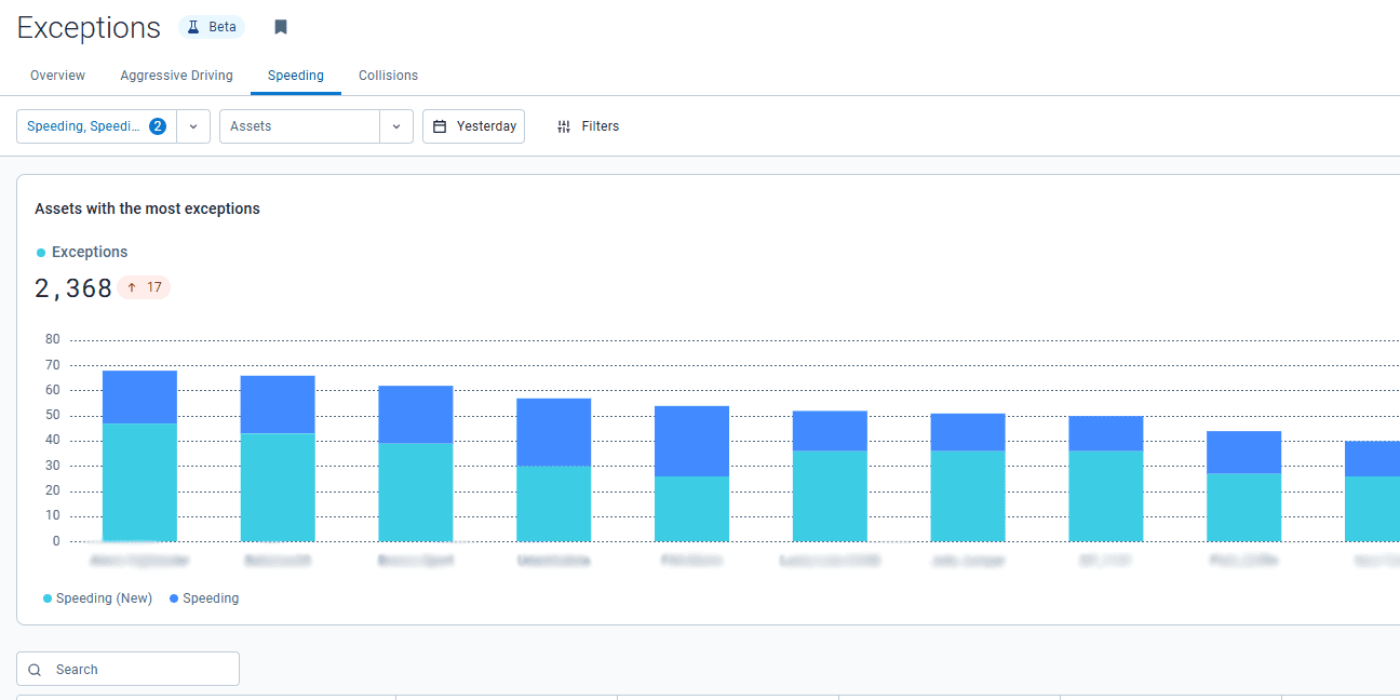
- GPS-based rules (labeled “New”) track how the vehicle actually moves between points, so road-surface noise is filtered out. They log more events because they pick up milder hard-driving incidents too, which is deliberate: it helps you address risky habits before they lead to a crash.
Thresholds for the GPS-based rules are set for you by vehicle class. Harsh braking is flagged at 0.300 g for passenger vehicles, 0.280 g for light-duty trucks, 0.240 g for medium-duty trucks and 0.200 g for heavy-duty trucks. A loaded tractor-trailer is therefore flagged at a far gentler stop than a sedan, reflecting the greater danger of sudden braking at that weight.
When going through harsh braking events:
- Look at where they occur. A cluster at one intersection or work zone may be a route problem.
- Watch for drivers who also appear in speeding reports. The two together signal more risk than either does alone.
- If you are comparing new GPS-based results with old sensor-based data, expect the number of events to jump at first.
Turning Exceptions Into Better Driving
Data only matters if it changes behavior. A simple process works well:
- Share the rules. Make sure every driver understands the standards and the reasons behind them.
- Review on a schedule. Once a week, filter by driver and rule and look for repeating patterns.
- Use the map in coaching. Showing a driver the exact time and place keeps the conversation factual.
- Follow the trend. Track violations per 100 miles in the Risk Management report to see if coaching is paying off.
- Fix root causes. If problems cluster on one route or shift, adjust the schedule or the route.
- Add live feedback. In-vehicle alerts, such as an audible beeper, can curb speeding before it ever reaches your report.
JP Services, a company profiled in a Geotab case study, takes this approach. It relies on the detailed exception report and the Risk Management report, and it credits idle-time tracking and driver awareness with lowering its idling and maintenance costs.
The Bottom Line
The Exceptions report is best treated as a short list of moments that deserve attention, not a list of people to blame. Read each entry for who, when, where and how serious, compare drivers on a per-mile basis, and let the patterns guide your coaching, routing and fuel-saving decisions.
Need help configuring rules, thresholds and scheduled reports for your fleet? GPS Tracking America can help you get more out of MyGeotab.
Frequently Asked Questions
What does exception mean in MyGeotab?
An exception is logged each time a driver or vehicle breaks one of the rules you have configured, such as going over a speed limit, idling too long or braking too hard. It lets you focus on the problem moments instead of combing through every trip.
How do I get to the Exceptions report?
Choose Exceptions from the main menu, which sits with the Groups & Rules tools (some guides call this section Rules & Groups, depending on your version). The page lists every event created by your rules. You manage the rules themselves under Groups & Rules > Rules.
Can I narrow down what the report shows?
Yes. You can filter by date range, by driver or vehicle, and by rule, such as Speeding or Harsh Braking. A search box also accepts vehicle names, driver names and rule names. Select Apply to refresh the list.
What information is attached to each exception?
Opening an entry shows who was driving, which vehicle was involved, the date and time, the rule that fired, the spot on the map where it happened, and any notes or comments added by your team. You can zoom the map in to see the exact location.
How is the Exceptions report different from the Risk Management report?
The Exceptions report focuses on the specifics of each violation, including where it took place. The Risk Management report totals up violations and compares them with the miles driven in the period. Used together, they show you both the individual events and the bigger picture.
What is the fairest way to rank drivers?
Compare violations per 100 miles instead of raw totals. A driver with ten violations over 500 miles is doing far better than one with ten over 50 miles. The Risk Management report is designed to make this kind of comparison easy.
What causes a speeding exception to trigger?
The newer built-in rule fires when a vehicle travels more than 20% above the posted limit for over 5 seconds, and Geotab does not allow that figure to be changed. Older or custom speeding rules can use whatever limits you set.
Can I set up a separate rule for excessive speeding?
Yes. A lot of fleets customize a speeding rule into an Excessive Speeding rule and report on it next to the standard one. That way, serious overages are clearly separated from minor ones, and you can respond to each appropriately.
How long can a vehicle idle before MyGeotab flags it?
The standard Idling rule defaults to 3 minutes and 21 seconds, and you can change it to fit your policy. Since anti-idling laws vary by state and city, base your threshold on the strictest rule where your vehicles operate.
Are there different kinds of idling rules?
Yes. Idling Within Zone watches specific places like job sites or yards, with a default of 5 minutes, and treats speeds under about 3 mph (5 km/h) as idling. Preventable Idling, which is in beta, ignores power take-off (PTO) time so legitimate work is not counted, and defaults to 10 minutes.
How much fuel does idling waste?
Research from Argonne National Laboratory puts idle fuel use for passenger cars at roughly 0.2 to 0.5 gallons per hour, and more for larger vehicles. Idling beyond 10 seconds burns more fuel and releases more CO2 than shutting the engine off and restarting it.
Do drivers really need to warm up the engine in cold weather?
Not for long. Argonne researchers suggest running a modern engine for about 30 seconds and then driving gently, since the vehicle warms up faster on the move. Most manufacturers advise against extended idling, even on very cold days.
What makes a harsh braking event register?
An event fires when deceleration passes a g-force limit. With GPS-based rules, the limit is set automatically by vehicle class: 0.300 g for passenger vehicles, 0.280 g for light-duty trucks, 0.240 g for medium-duty trucks and 0.200 g for heavy-duty trucks.
What separates sensor-based from GPS-based harsh driving rules?
Sensor-based rules depend on the accelerometer, so a pothole or rough road can trigger a false alert. GPS-based rules, marked New, track the vehicle’s real movement between points and filter out road-surface noise, which makes them more accurate.
Why did my harsh event count go up after switching to GPS-based rules?
That is expected. The GPS-based rules also catch milder harsh driving that older rules missed, and Geotab designed it that way so you can coach risky habits before they cause a crash. Keep this in mind when comparing new data to old.
Why is harsh driving data missing for some of my vehicles?
Vehicles connected through certain manufacturer (OEM) integrations may report only a limited set of data. Geotab’s Hyundai integration, for example, supports speeding and idling but not harsh acceleration, braking or cornering. Review the supported data for each vehicle type you run.
Does an exception prove the driver did something wrong?
Not necessarily. Treat it as a reason to look closer, not as a final judgment. Check the map and the circumstances first. Repeated events at one intersection, road or route often point to a scheduling or routing issue rather than a driver problem.
How often should I look at exception reports?
A weekly review works well for most fleets. Look for patterns by driver and rule instead of reacting to isolated events, and follow the trends over time to confirm that your coaching is making a difference.
Can I get alerts and export exception data?
Yes to both. Rule events can trigger notifications, so you can be told about specific behavior as it happens. On the Exceptions page, the Export option saves the details for meetings or driver files. Your user permissions determine which of these features you can use.