Restricted Data Mode and Privacy with Geotab

Restricted Data Mode and Privacy with Geotab
A company vehicle doesn’t stop being used when the shift ends. Take-home trucks, weekend errands, and contractors using their own cars all raise the same two questions: how much of this driving is for work, and how much of it should your business actually see?
Geotab offers tools for both. You can measure business and personal use for tax, productivity, and vehicle wear. You can also protect personal driving with Restricted Data Mode, which keeps off-hours location data from ever being stored in MyGeotab. Below is how each option works and when to choose it.

Geotab GO Anywhere Plus Asset Tracker
Option 2: Use Restricted Data Mode
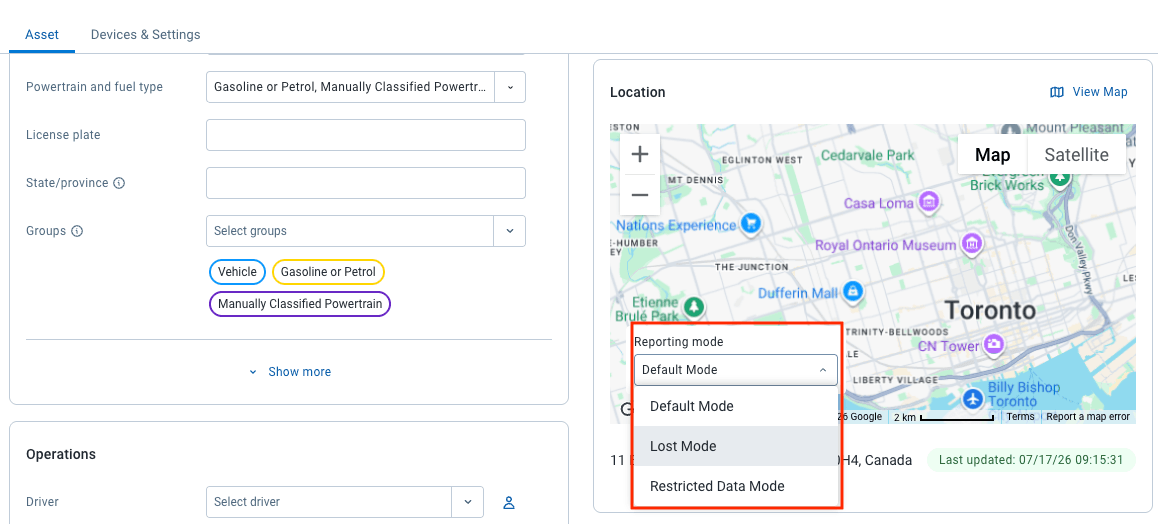
This mode stops MyGeotab from saving GPS coordinates, and optionally GPS speed, during personal time. Managers still see work activity, and drivers keep their off-hours driving private.
The Business vs Personal Report
This report summarizes trips and distances for each vehicle, and it relies on two Geotab features:
- Zones: Areas drawn on the map and labeled by type, such as Home, Office, or Customer.
- Work Hours: A work schedule assigned to each vehicle, so the system knows when it should be in use.
With both configured, the report can automatically exclude the commute. Any trip made during work hours that doesn’t end in a home zone is counted as business use. Rules differ by region, so treat the report as a dependable summary rather than a tax determination.
The report is based on the Trip Detail Report over a one-week period. A pie chart on the Geotab Dashboard displays your business-versus-personal split at a glance. You can assign the report to one vehicle or driver and have it emailed weekly, which speeds up expense reports and driver logs.
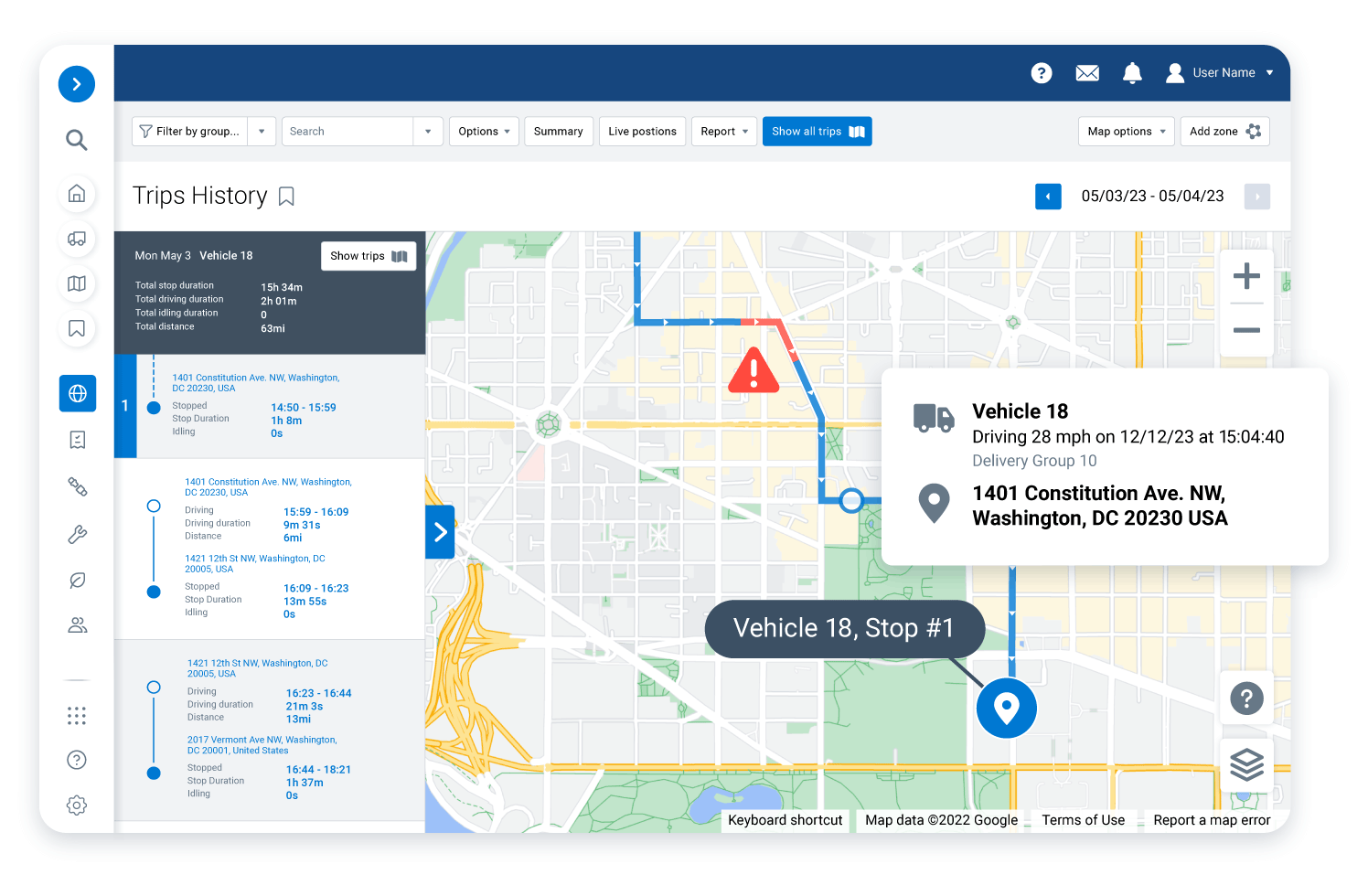
Catching Personal Trips on Weekends
Most personal driving shows up on weekends. A custom weekend report can be built for your fleet, covering Saturday and Sunday, with:
- Driver (vehicle) name
- Zone name, which is the employee’s home property in this case
- Date and time the vehicle entered and left the zone
- Time spent inside the zone
- Distance driven outside the zone over the weekend
How Restricted Data Mode Works
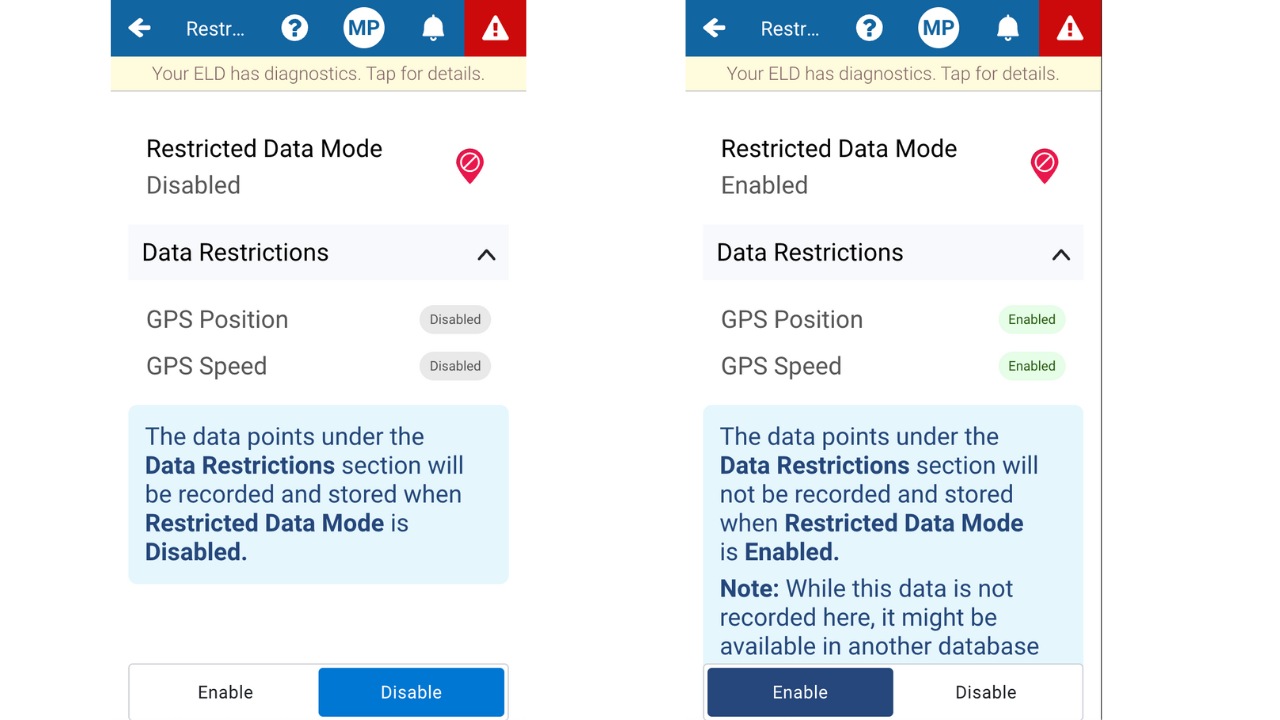
Restricted Data Mode stops MyGeotab from storing GPS coordinates, and optionally GPS speed, for a vehicle whenever the conditions you set are met. Older Geotab materials, and some current report descriptions, may call it Personal Mode or Privacy Mode.
While it’s active:
- Anything that depends on GPS is unavailable, including position, speed profiles, and GPS-based events.
- Features that don’t need GPS keep running. Engine speed profiles, for instance, are still available.
- Trips History records when the mode started and stopped, so your logs show no unexplained gaps.
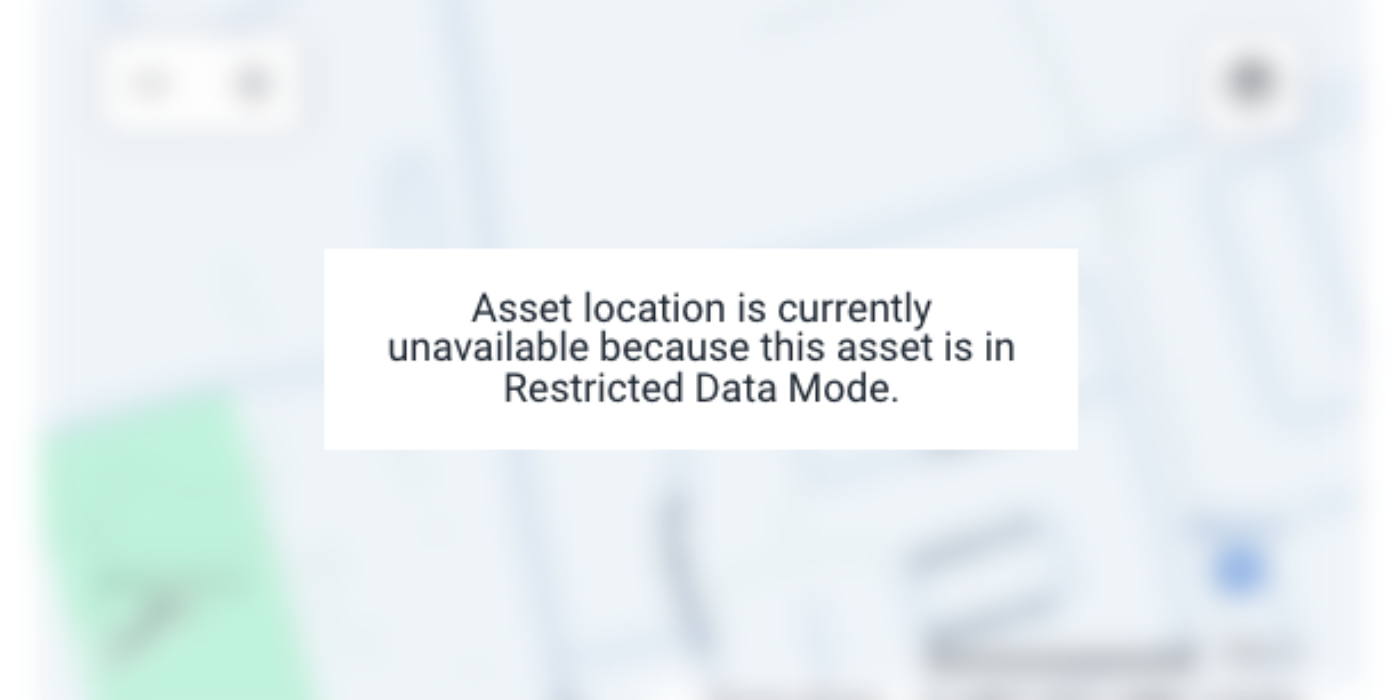
- The Map displays the vehicle as restricted, along with the start date and time, but not its location.
Data gathered during restricted periods is held for 60 days on Geotab’s Gateway servers and then deleted. Only Geotab engineers with the proper credentials can access it.

Rolling It Out to Your Drivers
Even a perfect setup fails if drivers don’t trust it. Tell them what is tracked, when tracking pauses, and who can view the data, and put your personal-use policy in writing before any devices are installed.
Want to Learn More?
Have questions about Restricted Data Mode or our fleet solutions? Our team is ready to help. Contact us today to learn how GPS Tracking America can support your fleet, improve visibility, and help keep your operations safe, efficient, and compliant.
Frequently asked questions
What does Restricted Data Mode do in Geotab?
Restricted Data Mode keeps MyGeotab from saving GPS coordinates, and optionally GPS speed, for a vehicle whenever your chosen conditions are met. Managers can still see work activity while drivers’ off-hours driving stays private.
Are Personal Mode and Privacy Mode the same as Restricted Data Mode?
Yes. Older Geotab materials, and a few current report descriptions, use the names Personal Mode or Privacy Mode. All of them refer to Restricted Data Mode.
Which data is not stored when Restricted Data Mode is active?
MyGeotab does not save GPS coordinates, and optionally GPS speed. Any feature that depends on GPS, including vehicle position, speed profiles, and GPS-based events, is unavailable during this period.
What still works while Restricted Data Mode is on?
Features that don’t rely on GPS keep running, such as engine speed profiles. Trips History also logs when the mode started and stopped, so your records have no unexplained gaps.
What shows on the Map for a vehicle in Restricted Data Mode?
The Map labels the vehicle as restricted and shows the date and time the restriction began. It does not display where the vehicle is.
How long does Geotab keep data recorded during Restricted Data Mode?
Data captured while the mode is active is held on Geotab’s Gateway servers for 60 days, then deleted. Until then, only Geotab engineers with the right credentials can access it.
How do I activate Restricted Data Mode?
An Administrator must first enable the feature for the database under System Settings, on the Assets tab. Once that’s done, it can be triggered by automatic rules, manually inside MyGeotab, or by drivers using the Drive App Add-In.
Can Restricted Data Mode turn on and off by itself?
Yes, through rules. Work Hours rules switch it on after hours and off when the workday begins, and zone rules switch it on inside a driver’s home zone and off once the vehicle leaves. Each setup requires two rules, one for turning it on and one for turning it off.
Can a fleet manager activate Restricted Data Mode manually?
Yes. Fleet operators can switch it on or off from the Asset Details page in MyGeotab. A manual setting overrides any rules unless you choose to let rules turn it off.
Can drivers control Restricted Data Mode themselves?
Yes. When the Restricted Data Mode Add-In from the Geotab Marketplace is in place, assigned drivers can turn the mode on and off from the Drive App.
What does Vacation Mode do?
Vacation Mode comes with the Restricted Data Mode Add-In. It is a stronger option that only the driver can start, and automated rules are unable to override it.
Is there a record of who changes Restricted Data Mode settings?
Yes. Every change, whether triggered by a rule, a user, or the Drive App, is saved in the MyGeotab Audit Log, giving you a complete history.
Is Restricted Data Mode compatible with HOS or IFTA reporting?
No. It should not be combined with compliance features such as Hours of Service (HOS) or IFTA reporting.
Does Geotab detect collisions during Restricted Data Mode?
No. Major and Minor Collision rules depend on GPS data and don’t function while the mode is active. Any collision during that time will not be detected or reported in MyGeotab.
How are trips recorded when GPS speed is restricted as well?
When GPS speed is also restricted, trips are built solely from ignition data. Those trips will have no GPS-based distance or speed.
Can I use Restricted Data Mode in a shared database?
No. The mode isn’t applied in shared databases, so data hidden in your primary database is still visible in the target database.
Is it possible to recover restricted data after an accident or theft?
Sometimes. Geotab Support may be able to extract it, but you need to submit a support ticket and show a legal basis. Geotab may ask for additional documentation as well.
What is the Business vs Personal report?
It’s a Geotab report that breaks down each vehicle’s trips and distances into business and personal use. It draws on Zones and Work Hours, and it supports managing mileage, expenses, productivity, and vehicle wear.
How does Geotab decide which trips are business trips?
Zones are map areas labeled by type, such as Home, Office, or Customer, and Work Hours are a schedule assigned to each vehicle. With both set up, any trip made during work hours that doesn’t end at a home zone counts as business use, which removes the commute from the totals.
Can the Business vs Personal report be sent automatically?
Yes. The report covers a one-week period and is based on the Trip Detail Report. You can assign it to one vehicle or driver and schedule weekly email delivery. A pie chart on the Geotab Dashboard also shows your business and personal split at a glance.
Is the Business vs Personal report suitable for tax filing?
It’s a dependable summary that speeds up expense reports and driver logs, but it isn’t a tax determination. Tax rules differ by region, so confirm your local requirements before relying on it.
What does the weekend personal trips report include?
This custom report covers Saturday and Sunday. It lists the driver (vehicle) name, the zone name (the employee’s home property), when the vehicle entered and left the zone, the time spent there, and the distance driven outside the zone over the weekend.
Should I use reports or Restricted Data Mode for personal driving?
That depends on your policy. If you need to measure personal mileage, the Business vs Personal and weekend reports are the right tools. If you don’t want off-hours location recorded at all, use Restricted Data Mode. They address different needs.
How do I explain driver privacy settings to my team?
Tell drivers what is tracked, when tracking pauses, and who can view the data, and write down your personal-use policy before any devices are installed. Fleets that respect driver privacy generally see much stronger acceptance of tracking.